MCP server
Let your AI assistant search, inspect and export from your AssetHoard library
Overview
AssetHoard can run a small MCP server while the app is open. MCP (Model Context Protocol) is the open standard AI tools use to talk to other programs. With it switched on, an assistant such as Claude Code, Cursor, VS Code (Copilot agent mode), Windsurf or Claude Desktop can:
- Search your library the same way the search bar does, including by meaning when semantic search is ready.
- Browse bundles, tags, categories and projects.
- Look at assets: full details plus a preview image the model can actually see.
- Copy assets into your game project, bringing referenced files along (textures, Godot
.tresresources, Unreal dependencies) and never overwriting anything. - Organise the library (optional, off by default): create and move bundles, tag, categorise and manage projects.
- Import files and folders (optional, off by default, and you approve each one in the app).
You stay in your editor or chat and say "find me a few low-poly rock models and put them in Assets/Props", and the assistant does the searching and copying against the
library you've already built.
Everything stays on your computer. The server only listens on 127.0.0.1, needs
a secret token, and refuses requests from web pages. See Security and privacy.
For every tool and its arguments, see the MCP tool reference.
Turning it on
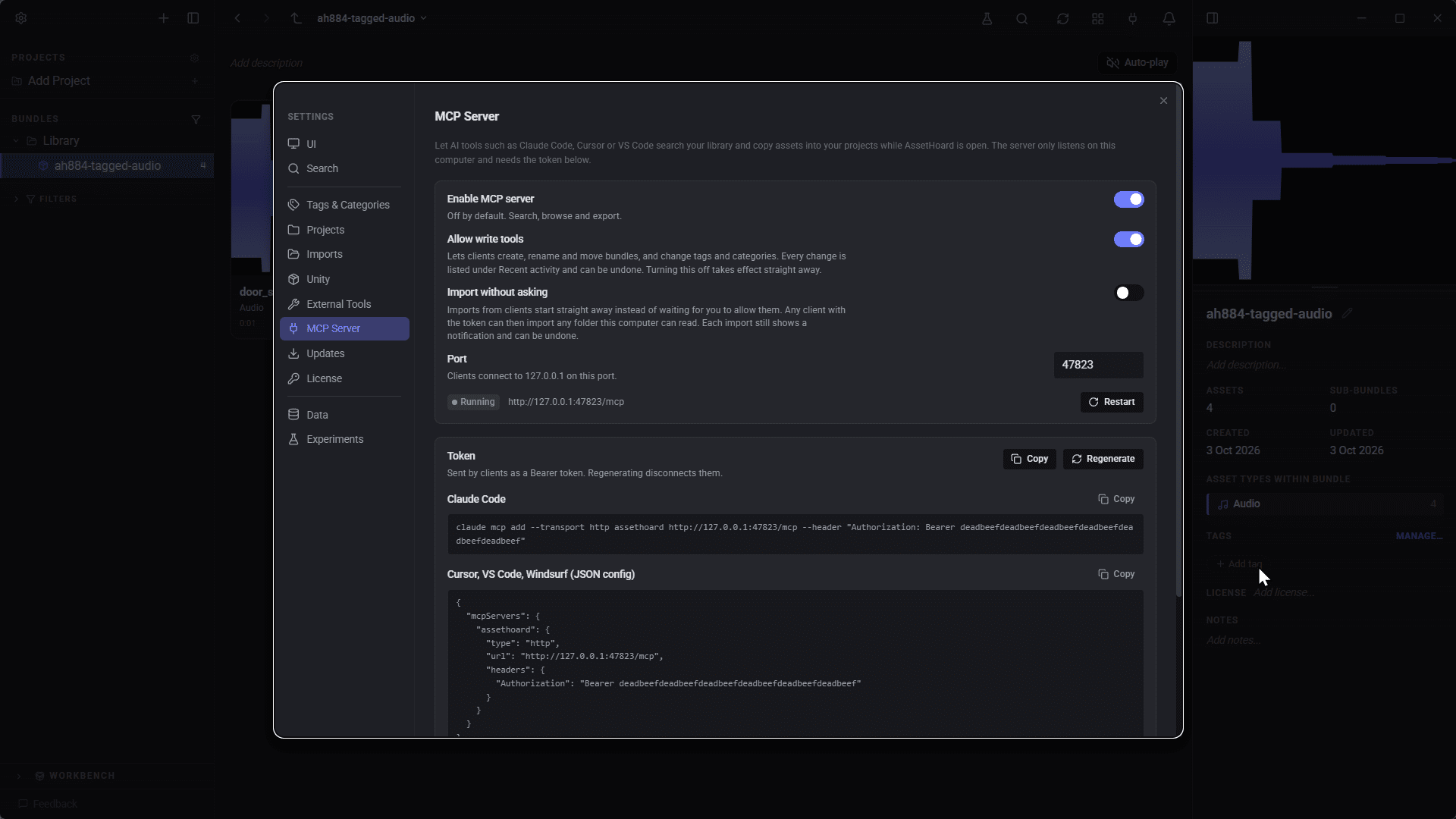
- Open Settings then MCP Server.
- Switch on Enable MCP server. A token is generated the first time.
- The status should read Running, with the address
http://127.0.0.1:47823/mcp. - Copy the ready-made snippet for your client from the same page. The snippets already include your port and token.
While the server is running, a plug icon appears in the main toolbar. Click it to jump straight to these settings.
Settings
| Setting | Default | What it does |
|---|---|---|
| Enable MCP server | Off | Starts the server with read tools only: search, browse, inspect and export. |
| Allow write tools | Off | Adds the tools that change your library (bundles, tags, categories, projects, import). Turning it off takes effect immediately, even for clients already connected. |
| Import without asking | Off | Imports from a client start straight away instead of waiting for you to click Allow. Only available when write tools are on. |
| Port | 47823 | The port on 127.0.0.1 that clients connect to (1024 to 65535). AssetHoard never picks a different port on its own, so your client configs keep working. |
| Token | Generated | Sent by clients as Authorization: Bearer <token>. Regenerate creates a new one and disconnects existing clients. |
| Restart | Restarts the server, for example after closing another program that was using the port. | |
| Recent activity | A live list of the last 50 tool calls: time, tool, a short summary and whether it succeeded. |
If the port is already in use, the status shows an error explaining why. Change the port or close the other program, then press Restart.
Connecting a client
Replace <token> with the token from Settings. The copy buttons in the app
fill it in for you. If you changed the port, change 47823 too.
Claude Code
claude mcp add --transport http assethoard http://127.0.0.1:47823/mcp --header "Authorization: Bearer <token>"Cursor
Add this to .cursor/mcp.json in your project, or to ~/.cursor/mcp.json to use it everywhere:
{
  "mcpServers": {
    "assethoard": {
      "url": "http://127.0.0.1:47823/mcp",
      "headers": { "Authorization": "Bearer <token>" }
    }
  }
}
VS Code
Add this to .vscode/mcp.json in your workspace, then use the tools from Copilot
in agent mode. Note that VS Code uses servers as the top-level key.
{
  "servers": {
    "assethoard": {
      "type": "http",
      "url": "http://127.0.0.1:47823/mcp",
      "headers": { "Authorization": "Bearer <token>" }
    }
  }
}
Windsurf
Open the MCP settings in Cascade and edit mcp_config.json. Windsurf uses serverUrl for the address:
{
  "mcpServers": {
    "assethoard": {
      "serverUrl": "http://127.0.0.1:47823/mcp",
      "headers": { "Authorization": "Bearer <token>" }
    }
  }
}
Claude Desktop
Claude Desktop connects through the mcp-remote bridge, which needs Node.js installed. Open Settings then Developer then Edit Config and add this to claude_desktop_config.json, then
restart Claude Desktop:
{
  "mcpServers": {
    "assethoard": {
      "command": "npx",
      "args": [
        "mcp-remote",
        "http://127.0.0.1:47823/mcp",
        "--header",
        "Authorization:${AUTH_HEADER}"
      ],
      "env": { "AUTH_HEADER": "Bearer <token>" }
    }
  }
}
The token goes in env rather than straight into args because Claude
Desktop on Windows doesn't handle spaces inside arguments. Leave Authorization:${AUTH_HEADER} exactly as it is.
Good to know
- AssetHoard must be open for the server to answer. Close the app and the tools go away.
- Clients only see the write tools if Allow write tools was on when they connected. After switching it on, reconnect or restart the client so it picks up the new tools.
- The transport is MCP streamable HTTP at the
/mcppath.
Write tools and undo
With Allow write tools on, the assistant can create and move bundles, add and remove tags, set categories, manage projects and import files. Every write goes through the same code as the matching action in the app, so it's validated the same way and shows up in the open window straight away.
Each change can be undone with Ctrl+Z (Cmd+Z on Mac). Undo
entries start with MCP:, for example MCP: Moved 1 asset into 'Rocks',
and a toast tells you what the assistant changed.
Some things are deliberately left out:
- No deleting assets or bundles. Categories and projects can only be deleted when nothing uses them.
- No merging or clearing categories or tags in bulk.
- No overwriting files on export.
How importing works
Importing is the most powerful tool, so it has the most checks:
- Write tools must be on, and your licence must allow imports. If AssetHoard is in restricted mode, the tool says so and points to Settings then License.
- AssetHoard checks the path and target first (an absolute path that exists, and a valid target bundle) and counts the files and packages.
- Unless Import without asking is on, AssetHoard asks you in the app. The prompt shows the path, the number of files and packages, the total size and the target bundle, and the window flashes to get your attention. Click Allow or Deny. No answer within 60 seconds counts as a no.
- Once allowed, the import joins the normal import queue, shows the usual progress notification and generates thumbnails as usual.
- The whole import is one undo entry:
MCP: Imported N assets. - The assistant checks
get_import_statusuntil it reports done, failed or cancelled. You can cancel from the notification like any other import. Whatever already finished stays imported.
A folder becomes a bundle named after it, with a sub-bundle per subfolder. Archives and .unitypackage files are indexed in place as packages. Stopping the MCP server
part way through doesn't stop an import that has already started.
Security and privacy
- Local only. The server binds to
127.0.0.1. Nothing on your network or the internet can reach it. - Token required. Every request must carry the bearer token: 48 random hex characters, checked in constant time. Regenerate it any time from Settings, which disconnects existing clients.
- Browsers are refused. Any request with an
Originheader, which every browser sends, is rejected, and theHostheader must be a loopback address. This stops a malicious web page reaching the server through DNS rebinding, as the MCP spec requires. CLI and IDE clients don't sendOrigin, so they work normally. - Off by default, in layers. Server off, write tools off, import without asking off. Each one has to be turned on deliberately.
- Visible and reversible. Recent activity lists every call. Writes show a toast and can be undone. Imports need your approval unless you opt out.
- Export never overwrites existing files.
What the assistant sees
Only what the tools return: names, paths, tags, categories, metadata and preview images of your library items. It doesn't get raw file contents, except by exporting files into a folder you name. Bear in mind that your AI client sends tool results to its model provider like any other context, so the usual rules for that client apply.
Examples
Things you might say to your assistant, and the tool calls it makes behind the scenes. Arguments are shown as JSON.
Find something by description
"Do I have any mossy stone wall textures?"
// search
{ "query": "mossy stone wall", "file_type": "texture" }
The assistant gets back a page of matching assets, any matching bundles and projects, and counts by file type, category and tag. It can call get_thumbnail on the best few to look at them before answering, then reply with links that open each asset in AssetHoard.
Narrow down with filters
"Show me Godot sprites tagged 'ui' from my Kenney bundle."
// list_bundles  ->  finds "Kenney" with id 42
// search
{ "query": "button", "ecosystem": "godot", "file_type": "sprite", "tags": ["ui"], "bundle_id": 42 }
Without a text query, the assistant can use list_assets with filters alone.
Copy assets into a game project
"Copy those three rock models into D:/Games/MyGame/Assets/Props."
// export
{
  "asset_ids": [1201, 1202, 1207],
  "dest_dir": "D:/Games/MyGame/Assets/Props",
  "with_dependencies": true
}
The models' textures come along because with_dependencies is on. Anything already in the folder is skipped and reported, never overwritten, and AssetHoard shows a toast summarising the export.
Export a whole bundle
"Drop my 'Dungeon Tileset' bundle into the Godot project at C:/dev/crawler."
// search  { "query": "Dungeon Tileset" }  ->  bundle id 88
// export
{ "bundle_ids": [88], "dest_dir": "C:/dev/crawler" }
The bundle's sub-bundles become folders in the destination.
Tidy up the library
"Make a bundle called 'Rocks' under 'Environment', move every rock model into it and tag them 'nature'."
// list_bundles    ->  "Environment" id 10
// create_bundle    { "name": "Rocks", "parent_bundle_id": 10 }  ->  id 311
// search           { "query": "rock", "file_type": "model", "limit": 200 }
// move_to_bundle   { "target_bundle_id": 311, "asset_ids": [1201, 1202, 1207, 1230] }
// add_tag          { "tag": "nature", "asset_ids": [1201, 1202, 1207, 1230] }
Needs write tools. Each step appears live in the open app and gets its own MCP: undo entry.
Categorise
"Put all the footstep sounds in the SFX category."
// list_categories  ->  no "SFX"
// create_category   { "name": "SFX" }  ->  id 7
// search            { "query": "footstep", "file_type": "audio" }
// set_category      { "asset_ids": [501, 502, 503], "category_id": 7 }
If a category called "sfx" already existed, create_category would refuse and return its id, and the assistant would use that one instead.
Track what a game uses
"Start a project called 'Crawler' and add the dungeon tileset and the footstep sounds to it."
// create_project   { "name": "Crawler", "description": "Roguelike prototype" }  ->  id 3
// add_to_project   { "project_id": 3, "bundle_ids": [88], "asset_ids": [501, 502, 503] }
Nothing moves in the library. The project just records the references.
Import a download
"Import C:/Users/me/Downloads/kenney_platformer-pack into my 'Kenney' bundle."
// import_path        { "path": "C:/Users/me/Downloads/kenney_platformer-pack", "target_bundle_id": 42 }
//   (AssetHoard asks you to Allow; you click Allow)
//   ->  { "import_id": "...", "file_count": 412, "package_count": 0 }
// get_import_status  { "import_id": "..." }  ->  { "state": "running" }
// get_import_status  { "import_id": "..." }
//   ->  { "state": "done", "imported": 412, "packages": 0, "failed": 0,
//         "root_bundle_id": 97, "link": "assethoard://bundle/97" }
Needs write tools, and your approval in the app unless Import without asking is on.
More ideas
- Set dressing. While building a level in Godot or Unity, ask for "three different barrel models and a wood texture that matches". The assistant looks at the thumbnails, then exports straight into your project's asset folder.
- Library clean-up. "Find untagged textures in my Downloads bundle, look at each and suggest tags." Approve the suggestions and let it apply them, with Ctrl+Z as the safety net.
- Asset audit. "List everything in the Crawler project and tell me which assets have no licence recorded."
- Pack onboarding. "Import this folder, then categorise the new assets by type."
Troubleshooting
| Symptom | Fix |
|---|---|
| Client can't connect | Check AssetHoard is open and the status reads Running, and that the port and token in the client config match Settings. |
| Status shows a port error | Another program is using the port. Pick a different one, update your client configs and press Restart. |
| Unauthorised after it used to work | The token was regenerated. Copy the new snippet into the client. |
| Write tools missing | Turn on Allow write tools, then reconnect the client so it fetches the new tool list. |
| "Write tools are turned off" error | The setting was switched off after the client connected. Turn it back on in Settings then MCP Server. |
| Import fails after a minute | Nobody clicked Allow within 60 seconds, or it was denied. Try again with AssetHoard in view, or turn on Import without asking. |
| "Imports are blocked" | AssetHoard is in restricted mode. See Settings then License. |
| Searching by description finds nothing useful | Semantic search may still be preparing. Name search still works, so try mode: "text" with words from the file names. |
| Works from Claude Code but not from a browser-based tool | By design. Requests from browsers are refused. |
Clicking an assethoard:// link does nothing | AssetHoard needs to be installed so the link scheme is registered. |