Unreal packages
Read .uasset and .umap packages directly, no Unreal Editor, no plugin
AssetHoard reads Unreal Engine's native .uasset and .umap packages
straight from disk. There is no Unreal Editor to open, no export step, and no plugin to
install inside Unreal. Point AssetHoard at a project's Content folder and each
package is catalogued by what it actually contains, with real previews and its dependencies
mapped, ready to move back out into any UE project with everything it references.
Reading a .uasset package
A .uasset is Unreal's serialised package format: a binary header (name, import
and export tables) followed by object data. AssetHoard parses that header itself, so it can
classify and inspect a package without booting the editor.
- No editor, no plugin: packages are read from disk. Nothing is installed inside Unreal, and nothing runs the engine.
- Engine version is auto-detected: AssetHoard reads the version from the package header, so you never have to tell it which UE version saved a file.
- Read-only: AssetHoard reads your packages for classification, preview and tagging. It never writes to your project or changes anything Unreal relies on.
Support is aimed at uncooked editor and source packages from a project. Cooked packages from a shipped game behave differently, covered under Engine version support.
Importing Unreal assets
Unreal packages import like any other asset. There are two ways in:
- Drag and drop one or more
.uassetor.umapfiles, or a wholeContentfolder, straight into the app. - Or use File → Import Assets from the menu and select the packages or folder.
Importing the project's Content folder (or a parent folder that contains it) is
the recommended way. It lets AssetHoard resolve the /Game/ references between
packages, so a material finds the textures it uses and a mesh finds its material. See References and dependencies for how that resolution works.
How packages are classified
A .uasset is an opaque blob in Explorer. AssetHoard reads the top-level object
in each package and assigns a type from its Unreal class, so a mesh looks like a mesh and a
sprite looks like a sprite, all before anything touches a project.
| Unreal class | Appears in AssetHoard as |
|---|---|
StaticMesh, SkeletalMesh | 3D model |
Texture2D, TextureCube, and other texture types | Texture |
Material, MaterialInstanceConstant, and related | Material |
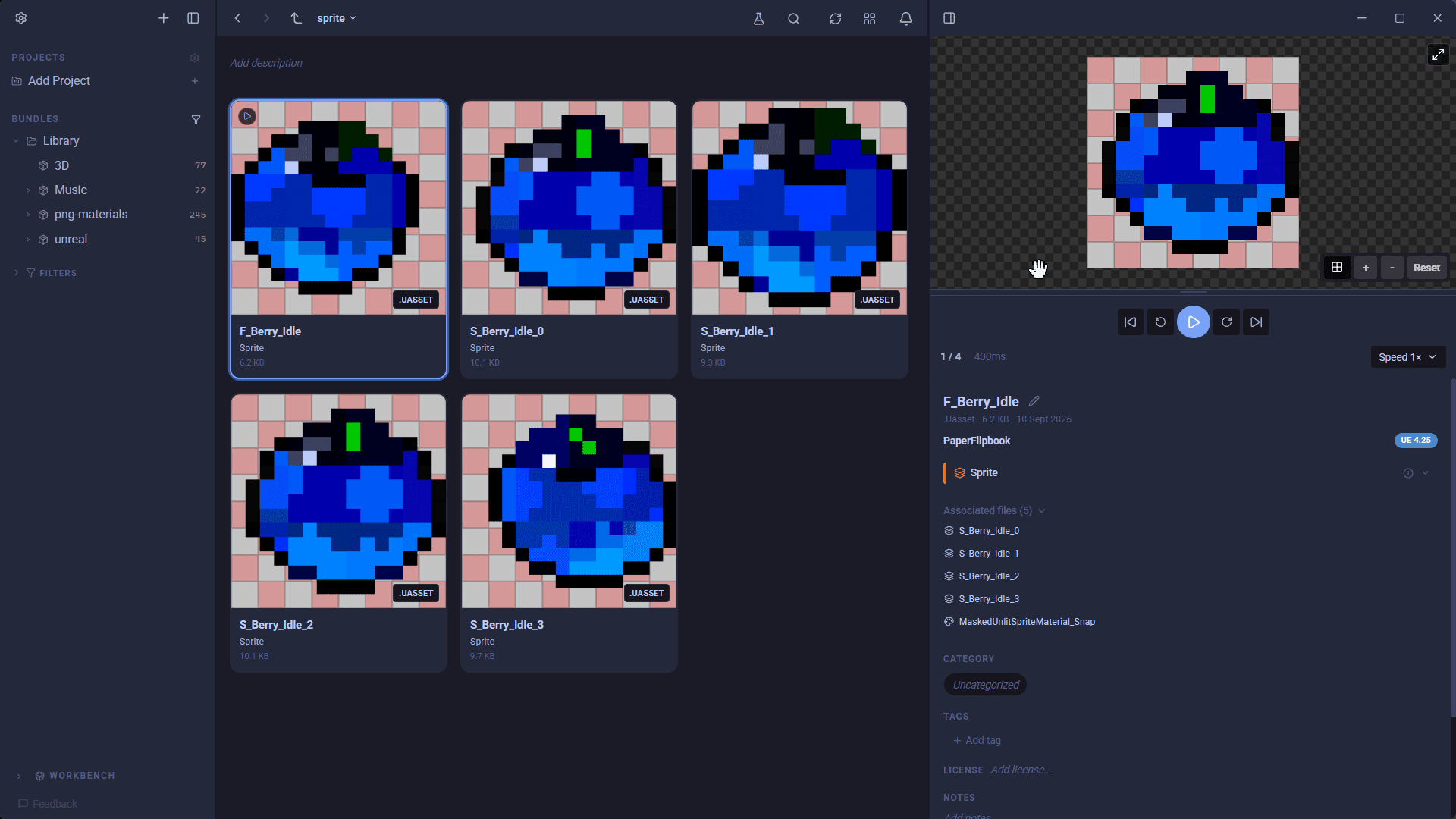
PaperSprite, PaperFlipbook | Sprite |
SoundWave, SoundCue, MetaSoundSource | Audio |
| Blueprints, data tables, levels, and anything unrecognised | Package (generic) |
Unrecognised classes fall through to a generic package rather than failing to import. Level
files (.umap) parse as worlds and appear as generic packages in the same way.
Engine version support
What AssetHoard can do with a package depends on the engine version that saved it and whether it is cooked.
| Package | Result |
|---|---|
| UE4.10 to UE5.5, uncooked | Parses fully: classification, references and previews |
| UE5.6 and newer | Imports as a generic package, no classification or previews |
| Cooked (from a shipped game) | Classifies and resolves references, falls back to a file-type icon for previews |
- Cooked vs uncooked: rich previews come from uncooked editor and source packages, which keep editor-only data like baked thumbnails and embedded audio. Cooking strips that data, so cooked packages still classify and resolve references but cannot show a rich preview.
- UE4 format inside UE5 projects: many UE5-project assets are still stored in UE4 package format, and those parse fully.
- Nothing fails an import: a package AssetHoard cannot parse is skipped and still lands in your library as a generic package. It never fails the import around it.
Previews
AssetHoard picks the richest preview each package can support:
- Meshes: static and skeletal meshes render in an interactive 3D orbit.
- Sprites: PaperFlipbooks play as animations at their real frame rate.
- Audio: SoundWave and SoundCue audio plays back in place.
- Material textures: shown as thumbnails.
- Everything else: falls back to the baked editor thumbnail Unreal stored in the package, or a clean file-type icon if there is not one.
References and dependencies
Every package lists the other packages it depends on, taken from its import table (paths like /Game/... and /Engine/...). AssetHoard resolves each /Game/ path against the matching asset in your library and shows them in the
References panel.
How references are bucketed
- Imported: the referenced package is already in your library.
- Importable: found on disk but not imported yet.
- Missing: referenced but not found on disk.
Resolution maps your project's Content folder to /Game/, which is
why importing the Content folder (or its parent) lets references link up. The Content root is inferred from the package's own path.
Self-healing, never automatic
- Self-healing: a missing reference links up on its own once you import the package it points to. There is no manual re-scan.
- No auto-import: AssetHoard resolves references and suggests matches, but it never imports a referenced package for you. You decide what enters the library.
Exporting content back out
When you want to move a package back into a project, AssetHoard brings everything it references with it.
- Drag out, or right-click Export with Dependencies.
- The asset is staged into a
Content-shaped folder tree with every package it references. - Reference chains, such as mesh to material to texture, are followed and de-duplicated.
- Drop the tree into a UE project's
Contentfolder and each/Game/reference resolves.
Exporting writes a fresh copy to a folder you choose. It never touches the originals.
Good to know
- One library across projects: AssetHoard can index content from any number of Unreal projects, plus loose folders and marketplace packs, and search across the whole library.
- Your project is never changed: reading, classifying and exporting all leave your Unreal project untouched.
- Dependencies stay in your control: references are resolved and suggested, never auto-imported.