Your asset library, inside your AI assistant
Say "find me a few low-poly rocks and put them in Assets/Props" and your
assistant searches the library you've already built in AssetHoard, checks the previews and
copies the files into your project. AssetHoard's MCP server makes it possible, and it never
leaves your computer.
Stays on your machine
Listens on 127.0.0.1 only, needs a secret token, and refuses requests from web pages.
Read-only by default
Out of the box the assistant can search, browse, inspect and export. Changing your library is a separate switch.
Everything undoable
Every change shows a toast and is a normal Ctrl+Z undo entry. Imports wait for you to click Allow.
See it in action
Claude Code is asked for a capybara sprite. It finds the "8 bit Capibaras" pack in AssetHoard,
exports the bundle into the project's sprites folder, and the sheets turn up in
Godot straight away.
What you can ask for
Stay in your editor or chat. The assistant does the searching and copying against your own library, and replies with links that open each asset in AssetHoard.
"Do I have any mossy stone wall textures?"
Searches by name and, with semantic search on, by meaning. The assistant can look at the thumbnails before answering.
"Copy those three rock models into Assets/Props."
Exports straight into your project folder with their textures. Existing files are skipped, never overwritten.
"Drop my 'Dungeon Tileset' bundle into the Godot project."
Exports the whole bundle, with its sub-bundles as folders and referenced files alongside.
"Find three different barrels and a wood texture that matches."
Set dressing without leaving your editor. The assistant compares previews, then exports the picks.
"Suggest tags for the untagged textures in my Downloads bundle."
With write tools on, it can apply the tags you approve. Every change can be undone with Ctrl+Z.
"Which assets in the Crawler project have no licence recorded?"
Reads your projects and the licence field on each asset, so you can fix gaps before you ship.
What the assistant can do
Always on
- Search like the search bar, including by meaning with semantic search
- Filter by file type, engine, tags, category or bundle
- Browse bundles, tags, categories and projects
- Read full asset details, including the licence
- Look at preview images
- Export assets and bundles into a folder, with referenced files
When you allow write tools
- Create, rename and move bundles
- Add and remove tags
- Create categories and set them on assets and bundles
- Create projects and add assets to them
- Import files and folders, with your approval
There's no tool for deleting assets or bundles, and export never overwrites a file.
Set up in a minute
Works with the AI tools you already use:
- Claude Code
- Cursor
- VS Code (Copilot agent mode)
- Windsurf
- Claude Desktop
Turn it on
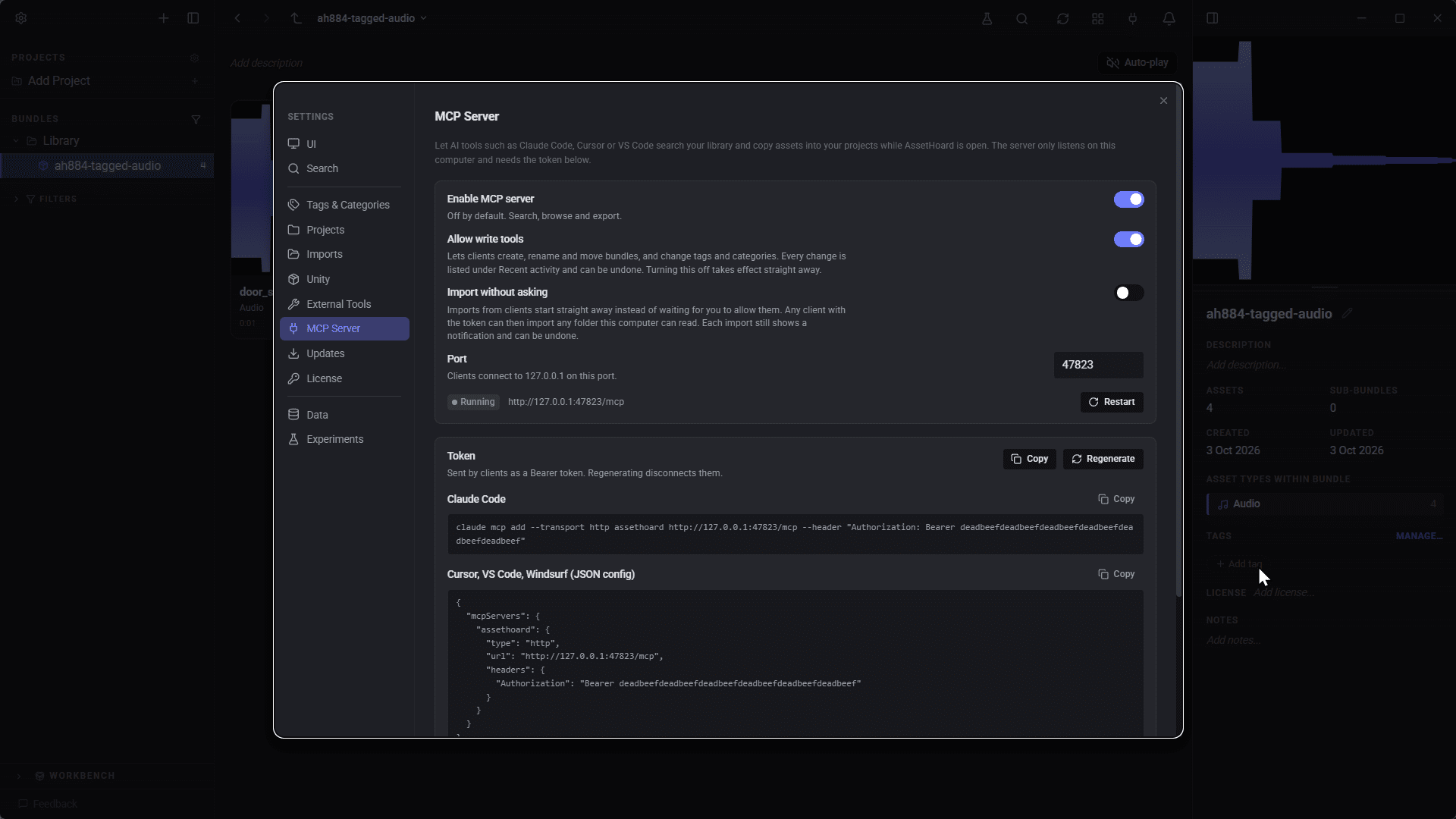
Open Settings then MCP Server and switch on Enable MCP server.
Copy the snippet for your client
Each one already includes your port and token. For Claude Code it's a single command.
Ask away
Keep AssetHoard open and ask your assistant about your assets.
Frequently asked questions
MCP (Model Context Protocol) is the open standard AI tools use to talk to other programs. AssetHoard runs a small MCP server while the app is open, so any MCP client you connect can search and use your library.
Claude Code, Cursor, VS Code (Copilot agent mode), Windsurf and Claude Desktop, with copy-ready setup snippets for each in the app. Other clients that support MCP over streamable HTTP should work too.
No. The server only listens on your own computer (127.0.0.1) and AssetHoard doesn't send anything out. Bear in mind that your AI client sends tool results, such as asset names, paths and preview images, to its model provider like any other context.
No. Every request needs a secret token, and any request from a web browser is refused. This blocks the DNS rebinding attacks the MCP spec warns about.
No. There is no tool for deleting assets or bundles. Out of the box the assistant can only search, browse, inspect and export. Organising tools are off until you switch them on, and export never overwrites existing files.
Press Ctrl+Z (Cmd+Z on Mac). Every change the assistant makes is a normal undo entry labelled "MCP:", and a toast tells you what changed. Settings also shows a live list of recent tool calls.
Yes, if you turn on write tools. By default AssetHoard asks you to Allow each import in the app, showing the path, file count, size and target bundle. You can opt out of the prompt if you prefer.
Yes. The server runs inside the app, so the tools are only available while AssetHoard is open.
Build your library once. Use it from anywhere.
Local-first. Offline-capable. No subscription.