You know how it goes. There's a Humble Bundle with forty Unity assets for $12. You grab it. Then the Asset Store has a 50% off sale and you pick up a few character packs you've been eyeing. A forum post recommends a great procedural terrain tool. It's on sale, why not. Six months later you have 300 .unitypackage files and absolutely no idea what most of them contain.
This is the Unity Asset Store backlog problem, and it affects almost every developer who uses the store seriously.
The problem with the Unity Asset Store
The Asset Store itself is part of the issue. When you're browsing it inside Unity, you see nice screenshots and read the description. But once something is in your library, that context mostly disappears. There's no tagging, no personal notes, no way to filter your own library by style or category. You can see a list of things you've purchased, and that's about it.
Outside of Unity it's worse. Your downloaded packages sit in a cache folder somewhere on your machine, just a pile of files named things like FantasyRPGCharacterPack_v3.unitypackage. No thumbnails. No way to know if that's a set of 2D sprites or fully rigged 3D models without importing it.
So what do most developers do? They import packages into a throwaway Unity project just to jog their memory, then delete it and forget again. If they're lucky, they remember to check the Asset Store listing first. If they're not, they spend twenty minutes importing and exploring something they bought two years ago and never used.
Multiply that across 200+ purchases and you've lost serious time.
Where Unity stores downloaded packages
Before you can organise anything, you need to know where the files actually live.
On Windows, Unity caches downloaded packages here:
C:\Users\{username}\AppData\Roaming\Unity\Asset Store-5.x\On macOS it's:
~/Library/Unity/Asset Store-5.x/And on Linux:
~/.local/share/unity3d/Asset Store-5.x/Inside that folder, packages are organised by publisher name, then package name. So a Synty Studios package might live at something like Unity\Asset Store-5.x\Synty Studios\POLYGON - Fantasy Kingdom\.
A .unitypackage file is essentially a tar.gz archive. Crack one open and you'll find the asset files themselves, .meta files, and a folder structure that mirrors how things will be imported into your project. Unity uses this to reconstruct where everything goes. It's not a mystery format, it's just not visible in any useful way without tooling.
A lot of developers have no idea this cache folder exists. They assume packages live "in Unity" somehow, and are surprised to discover there are gigabytes of files sitting in AppData.
How to set up a sane folder structure
The first practical step is to stop relying on Unity's cache folder as your long-term storage. Create a dedicated folder somewhere sensible, outside any individual Unity project, and treat it as your personal asset library.
Something like D:\GameAssets\ on Windows, or ~/GameAssets/ on macOS and Linux. The location matters less than the habit of putting everything there consistently.
From there, pick an organisational scheme and stick with it. Two approaches that work well:
By publisher. If you buy a lot from the same studios (Synty, Kay Lousberg), organise by publisher name: GameAssets/Synty/, GameAssets/KayLousberg/, etc. This mirrors how the Asset Store cache is already structured, which makes copying files over straightforward.
By category. If you buy from lots of different publishers, category-first often makes more sense: GameAssets/3D Models/, GameAssets/Audio/, GameAssets/UI/, GameAssets/Shaders/. When you're hunting for audio assets, you look in one place regardless of who made them.
You can combine the two: publisher folders within categories, or sub-folders by style within publisher folders. Whatever matches how you actually search for things.
Alongside the folder structure, keep a simple reference document. A spreadsheet or even a plain text file. For each package, note:
- What the package actually contains (a brief description in your own words)
- The licence type (some Asset Store licences restrict redistribution or use in certain contexts)
- Which projects you've used it in
That last one is more useful than it sounds. When you're upgrading a project or changing an asset, knowing exactly what you've used and where means you're not hunting through old project folders.
One more thing: back up your packages. The Asset Store doesn't guarantee lifetime access to everything. Publishers remove packages, the store has had downtime, and there have been cases where purchased assets became unavailable. Once you've downloaded something you paid for, treat it like it might not be there tomorrow, because occasionally it won't be.
Why folder structure alone isn't enough
Folders get you a long way. They're better than nothing by a significant margin. But they break down once your library gets serious.
The fundamental limitation is that a folder tells you what something is called and where it lives. It doesn't tell you what's inside. You can rename your file to synty_polygon_fantasy_kingdom_v1.2.unitypackage and that's still just a name. You don't know whether it has NPCs, whether the textures are 1K or 4K, whether it includes animations or just static meshes.
Tags are the thing folders can't do. A package might be "low-poly" and "fantasy" and "Synty" and "characters" all at once. In a folder structure, it lives in exactly one place. If you organise by publisher, you can't find it when you're browsing by style. If you organise by style, you lose the publisher grouping. Any folder scheme is a single taxonomy, and your brain uses multiple taxonomies simultaneously.
Spreadsheets help with this. You can add multiple columns for different attributes. But they don't scale pleasantly once you're past about fifty entries, and they're completely disconnected from the actual files.
The deeper problem is that to even fill in a spreadsheet accurately, you need to know what's in each package. And the only way to find out what's in a .unitypackage without tooling is to import it into Unity. Which brings you back to the throwaway project workflow, just with more paperwork involved.
Using AssetHoard to manage your Unity library
This is where a dedicated game asset manager earns its keep.
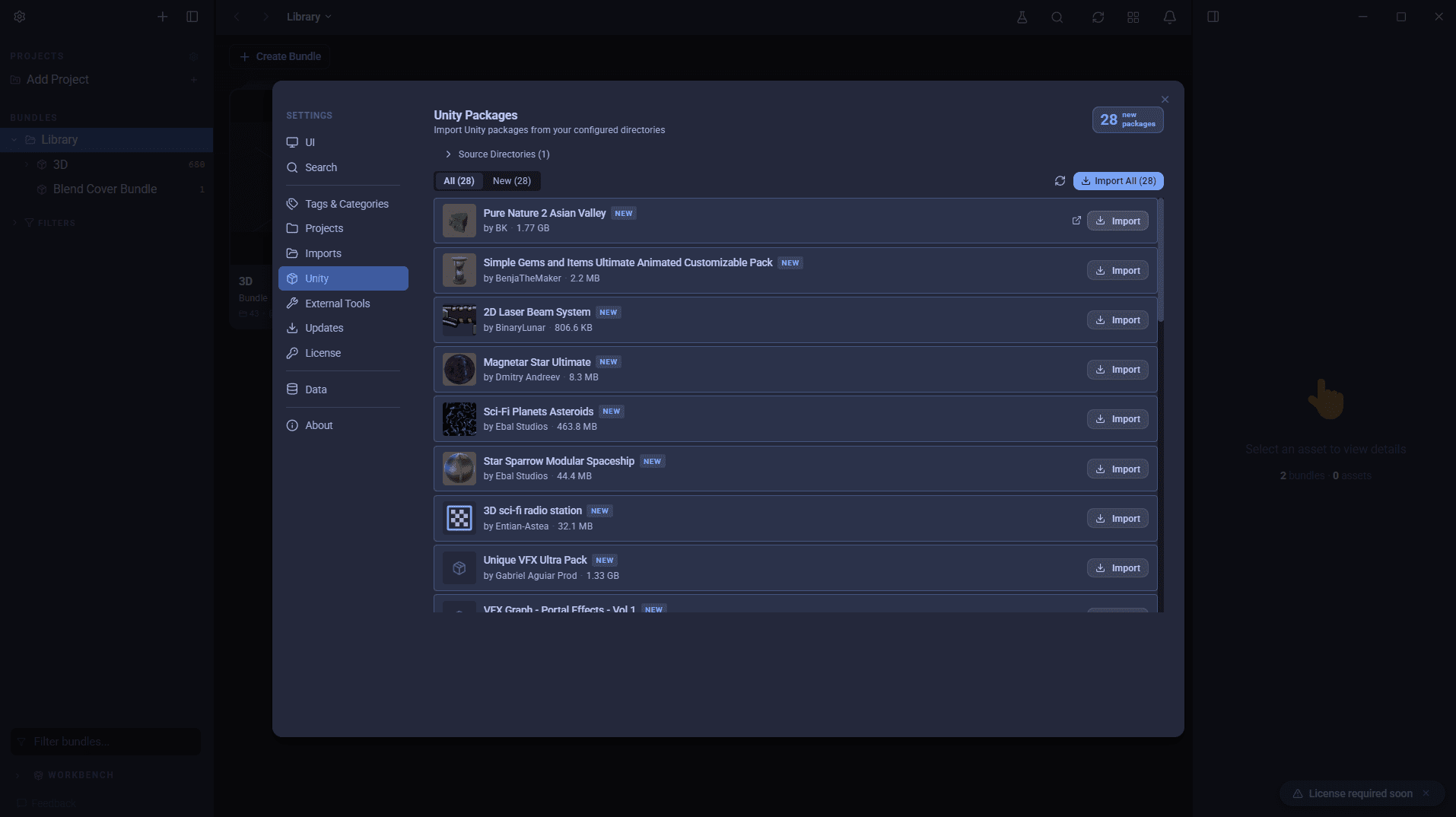
AssetHoard is built specifically for this problem. You point it at your Asset Store download folder, or wherever you've moved your packages, and it indexes everything. No importing into Unity, no throwaway projects.
From there you get actual previews: thumbnails for textures, sprites, and models pulled directly from inside the .unitypackage archives. You can browse what's in a package before you've touched it in Unity. That alone saves a significant amount of time if you're regularly evaluating what you own before starting a project.
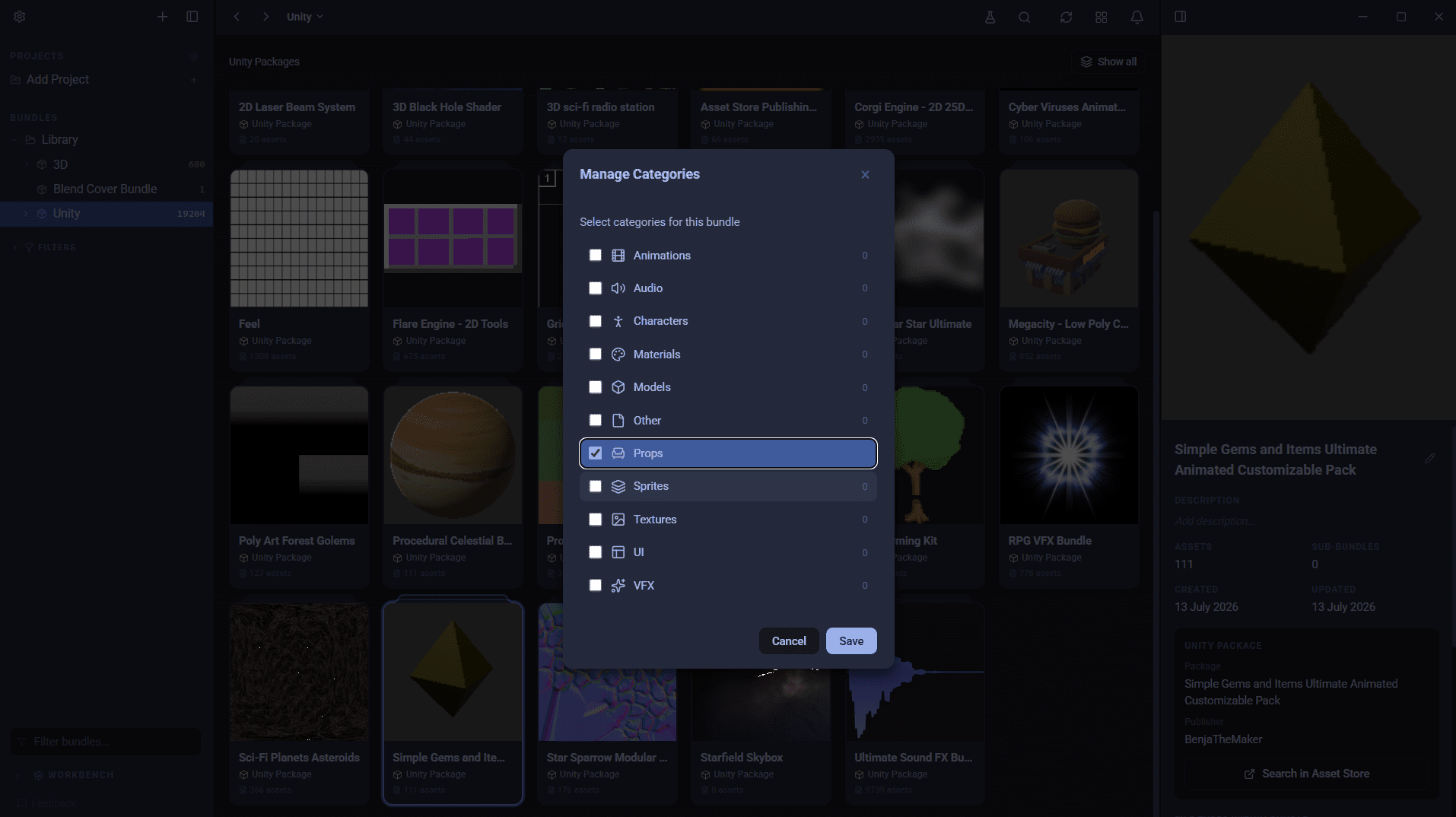
Tagging is the other big feature. You can tag packages however makes sense to you: by style, category, project, quality level, whatever. A Synty pack can be tagged "low-poly", "fantasy", "characters", and "Synty" simultaneously. When you're starting a fantasy game and want to see every low-poly character asset you own, you search for those tags and everything shows up regardless of where the files are stored.
When you've found what you want, you can drag assets directly into an open Unity project. You're not manually digging through AppData or remembering which subfolder you put things in.
AssetHoard is a one-time purchase, local-first, no subscription. There's no cloud sync, no account required, nothing phoning home. Your files stay on your machine and so does your library data. If you want more detail on the Unity-specific workflow, there's a dedicated Unity asset manager page worth reading.
Summary
The real cost of your Asset Store library isn't the money you spent buying things. It's the time you lose not being able to find them when you need them, or re-discovering the same packages over and over because you have no system.
Any system is better than no system. Folders and a spreadsheet are a perfectly reasonable starting point and will serve you well until your library grows past a point where manual upkeep becomes its own overhead.
But if you're buying assets regularly, building multiple projects, or just feel like you own a lot of stuff you can't actually use effectively, a game asset manager will return the time investment many times over. The goal is a library you can actually search, not just a pile of files you vaguely remember paying for.
The Asset Hoard Team