← All Releases
MCP server
AssetHoard is a local-first asset manager for game developers and digital artists. This release adds an MCP server, assethoard:// links, searchable and editable audio metadata, EXR and HDR support, and batch image export.
🤖 MCP server
AssetHoard now has a built-in MCP server. Claude Code, Cursor, VS Code and Windsurf can use it to search your library and copy assets into your project. Setup steps are in the MCP docs.
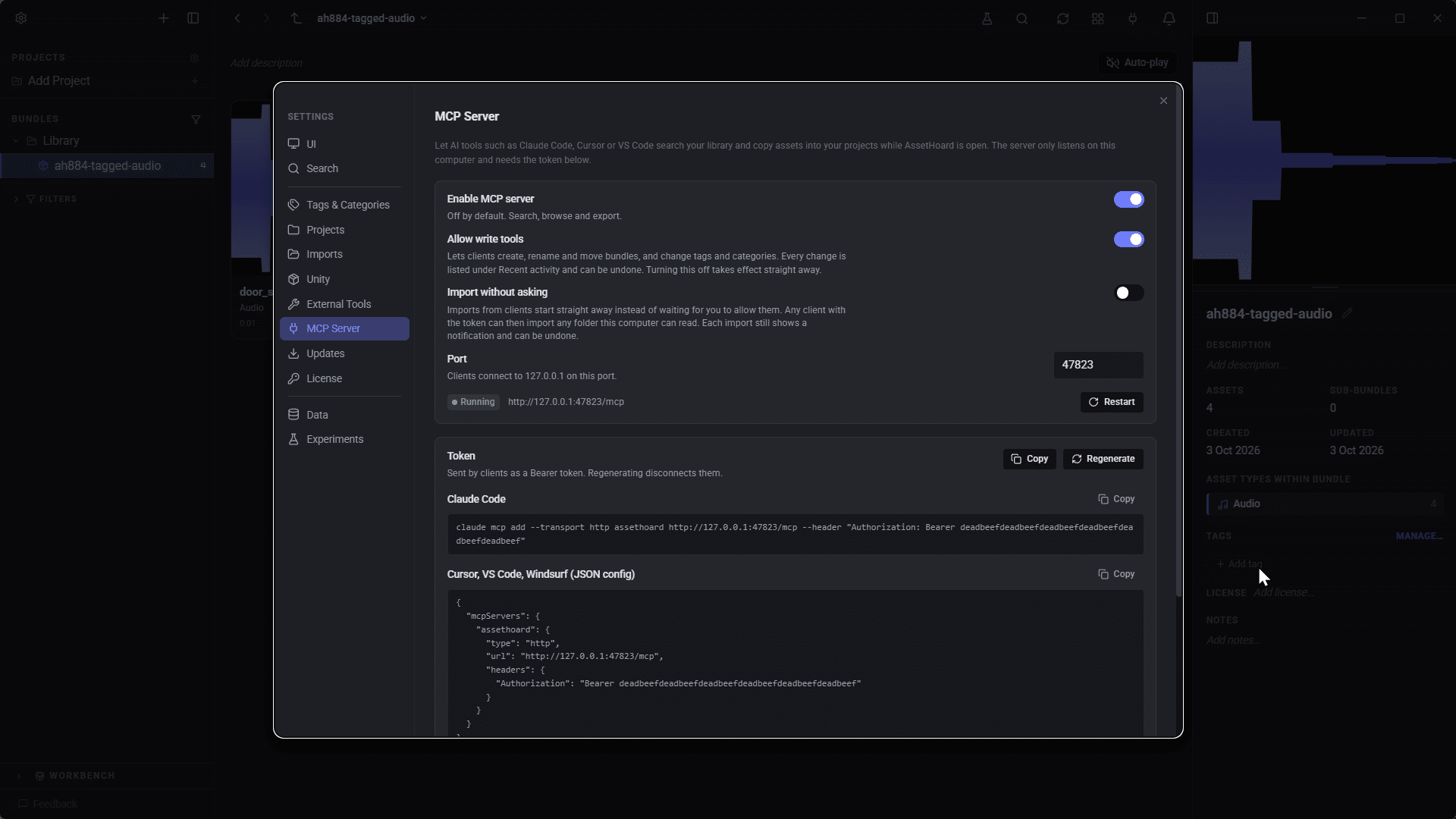
- Setup. Turn it on in Settings > MCP Server. It's off by default, only listens on your machine and needs a token. The settings page gives you a setup command to paste into your client. Claude Desktop connects through
mcp-remotefor now. - Search. Same as the search bar: by name with typo tolerance, and by meaning if semantic search is on. Results can be filtered by file type, tag, category or bundle. Clients can also view thumbnails, asset details and bundle contents (50 assets per page).
- Export. Copy assets or bundles to a folder along with their dependencies, such as Godot resources, Unreal references and model textures. Existing files are never overwritten.
- Write tools. Off unless you enable Allow write tools. Clients can then manage bundles, tags, categories and projects. Nothing can be deleted over MCP except unused categories and empty projects.
- Import. Clients can import a file or folder, optionally into a chosen bundle. AssetHoard asks you to allow or deny each import, showing the path, file count and size. No answer within a minute counts as deny. Turn on "Import without asking" in settings to skip the prompt.
- Undo. Changes appear in the app immediately, with a toast, and go on the undo stack labelled "MCP:". A toolbar indicator shows when the server is running, and the settings page lists recent activity.
🔗 assethoard:// links
To help the MCP server link directly to assets, AssetHoard now registers assethoard:// file scheme.
assethoard://asset/<id>,assethoard://bundle/<id>andassethoard://project/<id>links open AssetHoard at that item. If the app is already open it uses that window.- Assets, bundles and projects returned by the MCP server include a
link, so your assistant can give you a clickable link.
🔊 Audio metadata
- Search. AssetHoard reads embedded metadata from WAV (Broadcast Wave and RIFF info), MP3, FLAC and Ogg files: description, comment, keywords, title, artist, album, genre and year. All search modes match on it, so searching "shatter" finds
SFX_0472_FINAL.wavif that's in its description. - Existing libraries are updated in the background. Except for packages/archives. Please
reimportthem to update the id3 tags
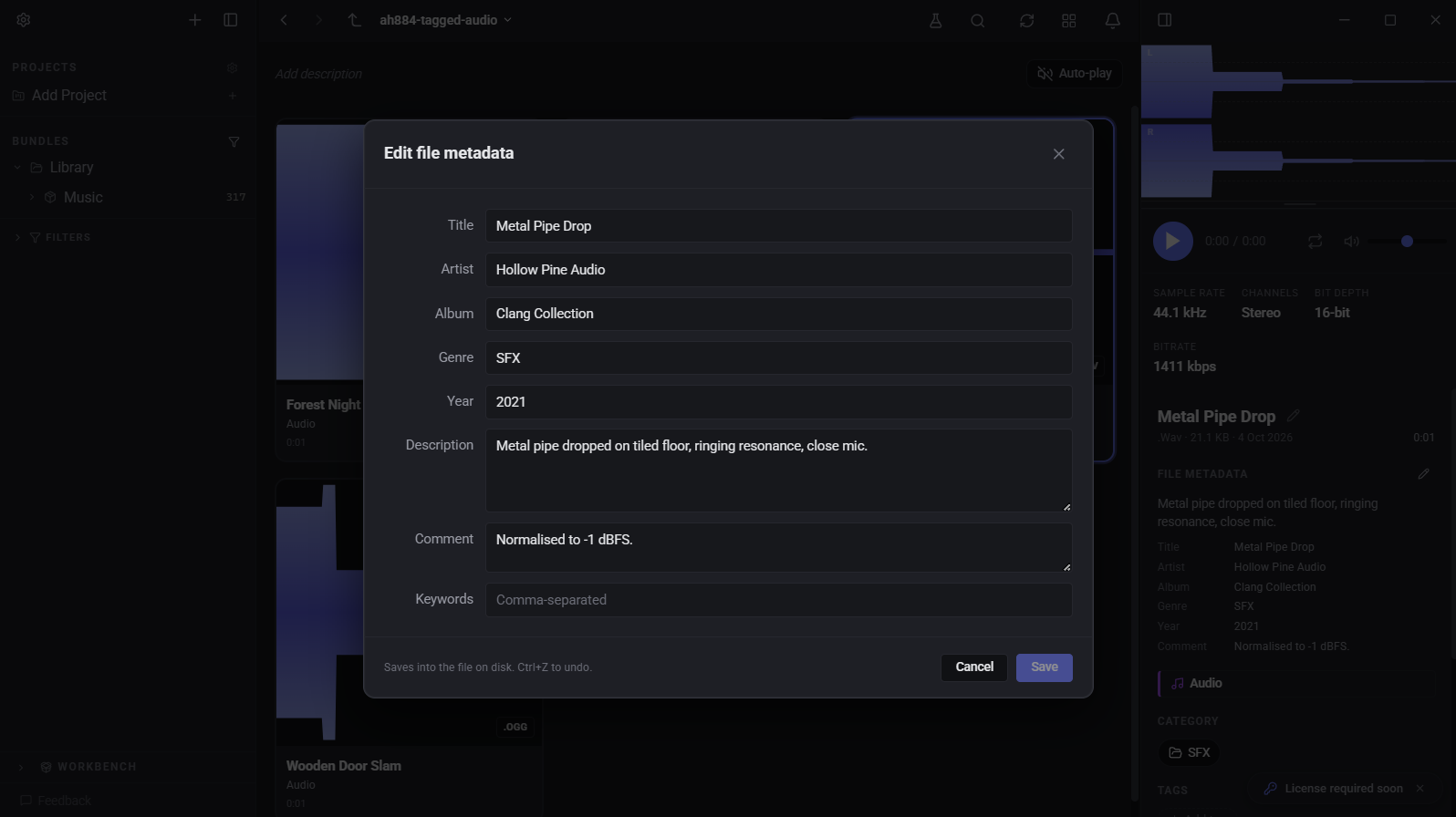
- Details panel. A new File metadata section shows these fields.
- Editing. Click the pencil next to File metadata to edit the tags. Changes are written back into MP3, WAV and FLAC files, so other tools see them too. Ogg is read-only for now.
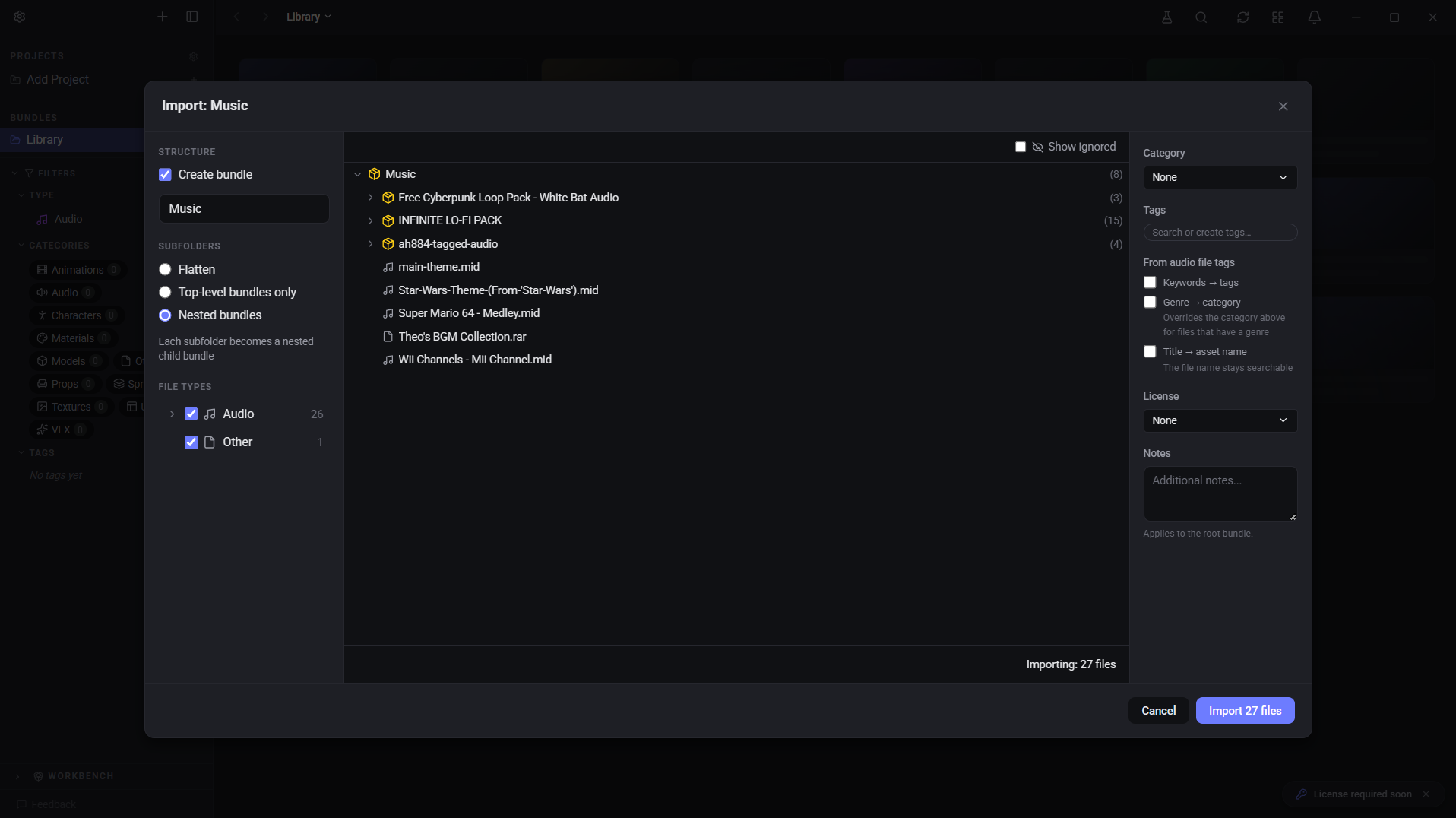
- Import options. When importing audio, you can turn keywords into tags, genre into a category and the embedded title into the asset name. The same actions are in the details panel for individual files.
- Faster imports. Waveforms are now generated the first time you view a sound, not during import.
🌅 EXR and HDR
.exrand.hdrfiles now get thumbnails, previews, dimensions and image search. They also show in Associated Files and material previews.- EXR, HDR and float TIFF files can be exported as EXR, keeping full range and alpha. PNG, JPEG, GIF and TGA exports of these files are now colour-corrected instead of coming out dark.
- When a file can't be previewed (unsupported EXR compression, deep images, too large to decode), the preview says why, and Export As is hidden.
To get thumbnails for EXR and HDR files already in your library, right-click and choose Reimport.
🖼️ Export As
- Image… replaces the format list and the Resized… item. Pick format and size in one dialog. Size defaults to original, and there's a new Percentage option.
- Batch export. Select several images and choose Export As > Image… to resize and convert them all into one folder. Images are only ever scaled down. Choose Nearest for pixel art or Smooth for everything else. The dialog shows each file's before and after size, and name clashes get
(2)appended. - Crop… saves a region of an image as a new file at full resolution. Drag a box or type the coordinates, with optional aspect ratio presets.
🗂️ Organising
- You can now create a category from any category dropdown, and from Set category and Manage Categories. Thanks to cpt_nightmare for the suggestion.
- Category names must be unique (case-insensitive). Existing duplicates aren't changed. Use Merge in Settings to combine them.
- Projects can be created, edited and deleted from the sidebar. Deleting asks first and can be undone. Projects now use the same colour picker as tags.
- Bundles have a new Manage > Reimport All Assets option, which includes sub-bundles and shows how many assets will be reimported first.
📚 Large libraries
- Fixed a disk-heavy check that could run for minutes after launch on libraries with lots of zips and Unity packages.
- Orphan scans run in the background, and the cleanup list shows the first 200 missing files.
- Fixed "too many SQL variables" errors when deleting large bundle trees, removing many orphans, or working with very large selections.
- Undoing a delete of 40,000 assets now takes a couple of seconds instead of several minutes.
🐛 Fixes
- Undoing Add to Project no longer removes the whole project. Undoing a project rename or description change now works.
- Undoing a drag that moved assets and bundles together now refreshes the open bundle.
- Exiting a search inside a bundle returns you to the bundle and clears the search box. Searches no longer run twice.
- Zoomed image previews are sharper.
- Deleting a category clears it from bundle category chips immediately.
- Adding a tag with the same name as a deleted tag now restores the old tag instead of failing.
Happy hoarding.