Sprite sheet slicing and animation export
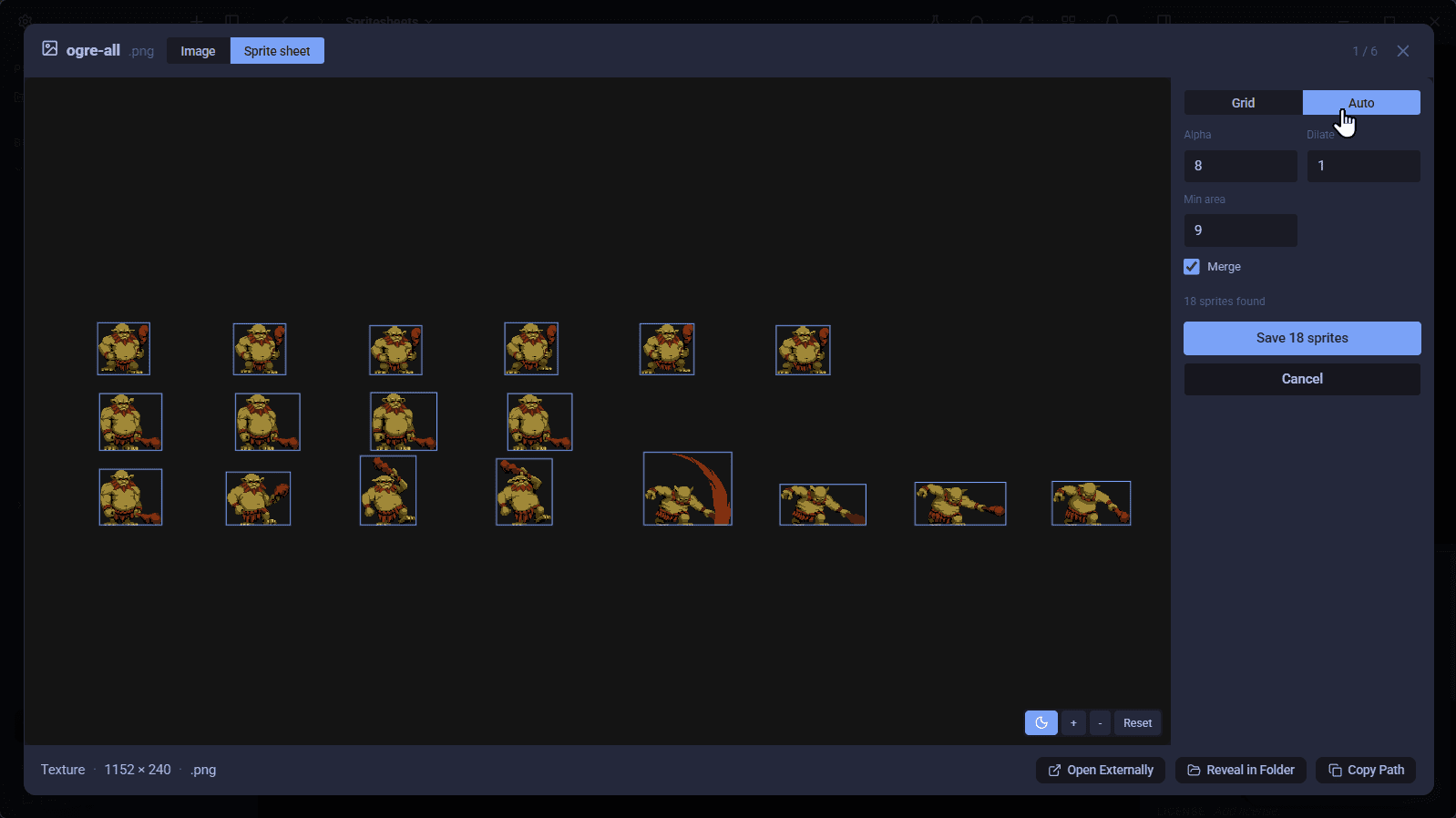
AssetHoard is a local-first asset manager for game developers and digital artists. This is an exciting release, because AssetHoard goes from being a catalogue of your assets to genuine utility, and we start with spritesheet slicing!
🎬 A sprite sheet, taken apart
Slice a sprite sheet into its individual frames, browse them, build named animations, play them back, and export the result.
- Slice a sheet into a contact-sheet overview. Set the grid by cell/padding, or let auto detection work out the cell size for you on those non-standard spritesheets
- Organise the slices into SpriteSets that can then be "animated" or viewed as the "atlas"
- Export the animation three ways: a looping GIF, a packed sprite sheet PNG with an optional atlas JSON, or the raw per-frame PNGs.
🖼 Export an image to another format
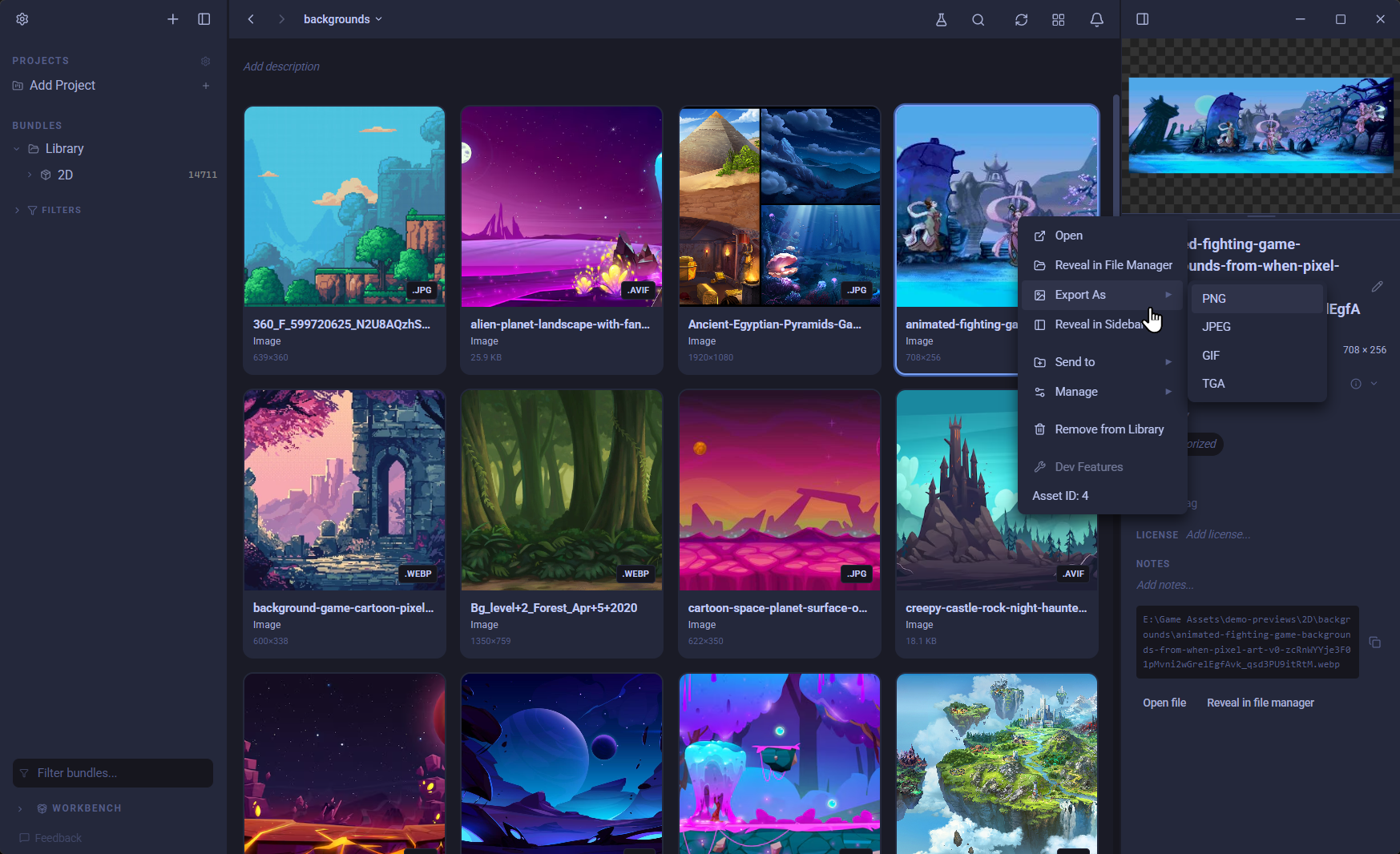
- Right-click an image and choose Export As to save a copy as PNG, JPEG, GIF or TGA. the source's own format is left off the list, and a notification links straight to the new file so you can open its folder.
📤 Export animations from other formats
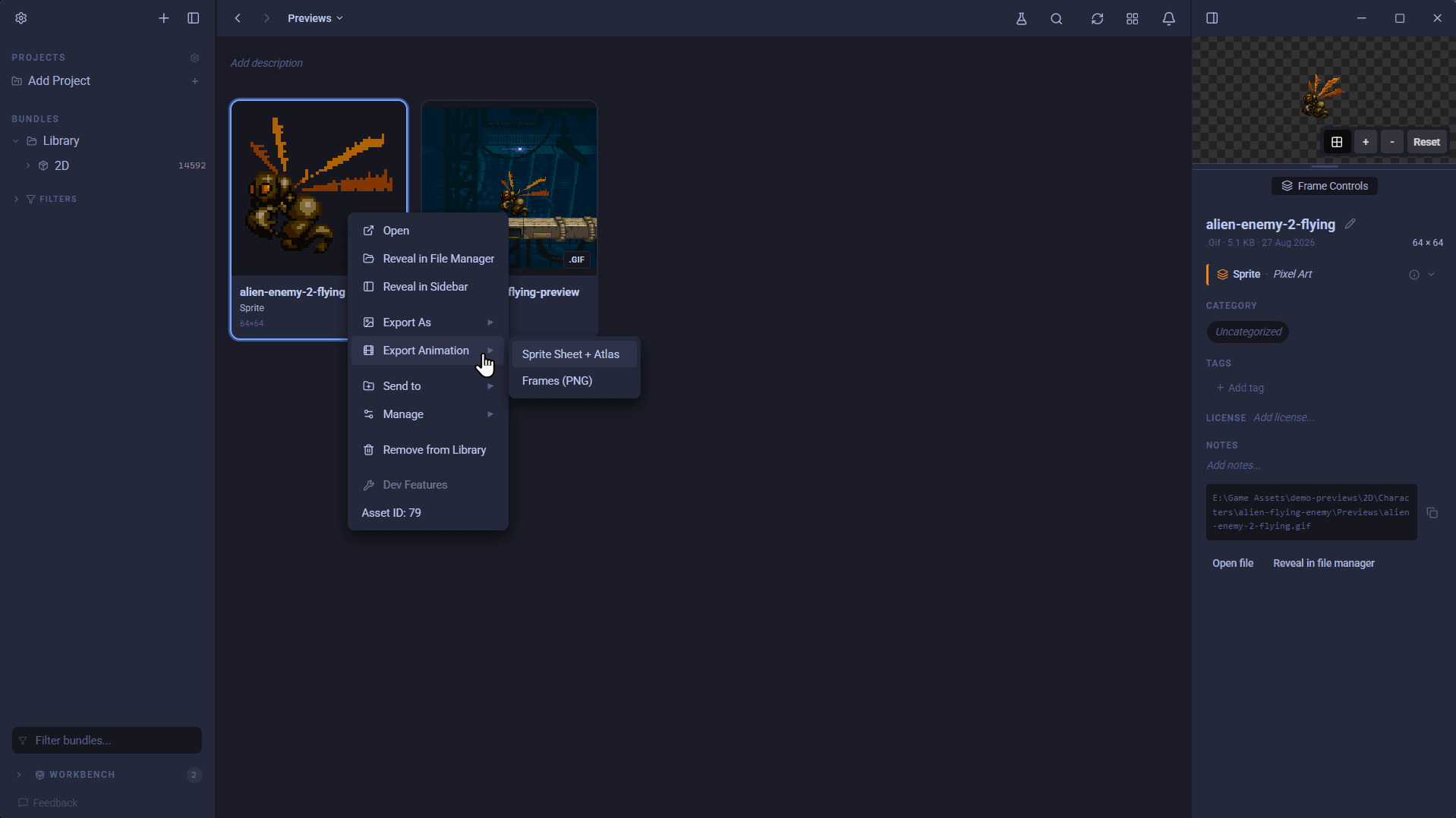
If an asset plays as an animation, you can export it straight from the right-click menu without opening the details panel first.
- Aseprite (
.ase/.aseprite) exports as a looping GIF, either the whole timeline or a single named tag. Static one-frame Aseprite files export throughExport As - Piskel (
.piskel) exports its frames as a GIF at the file's own playback speed; a single-frame Piskel exports as a still image instead.
GameMaker resources export from the right-click menu: a sprite as a GIF or a still, an object or tileset as its sprite, a font as its baked glyph atlas. Works for loose files and for sprites inside imported packages.
Godot SpriteFrames (
.tres) exports each named animation as a GIF, or, for a static pose sheet, its frames as PNGs.Animated GIFs export to a packed sprite sheet with an atlas JSON, or to per-frame PNGs, decoded straight from the GIF so what you export matches what plays.
Animated variant groups export as a proper animated GIF of every frame in order, instead of the single-frame file you used to get.
🧭 One vocabulary for typing and filtering
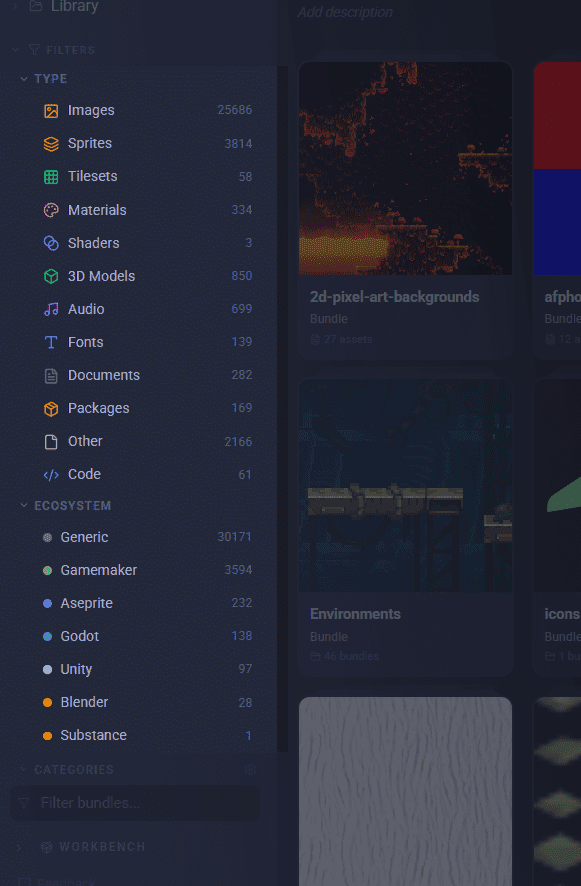
A file's type matters less than its context. A piece of code might be a document or a shader; an image might be a texture or just an image. So AssetHoard now classifies by asset type rather than file type, which lets us build smarter classification on top of it.
- New Type and Ecosystem facets in the sidebar
- Consistent names throughout: "Textures" is now "Images" across asset and bundle previews.
This is the first step in changing some of the core fundamentals in AssetHoard while we're in beta. The next cab off the rank will be categories!
📦 And more fixes
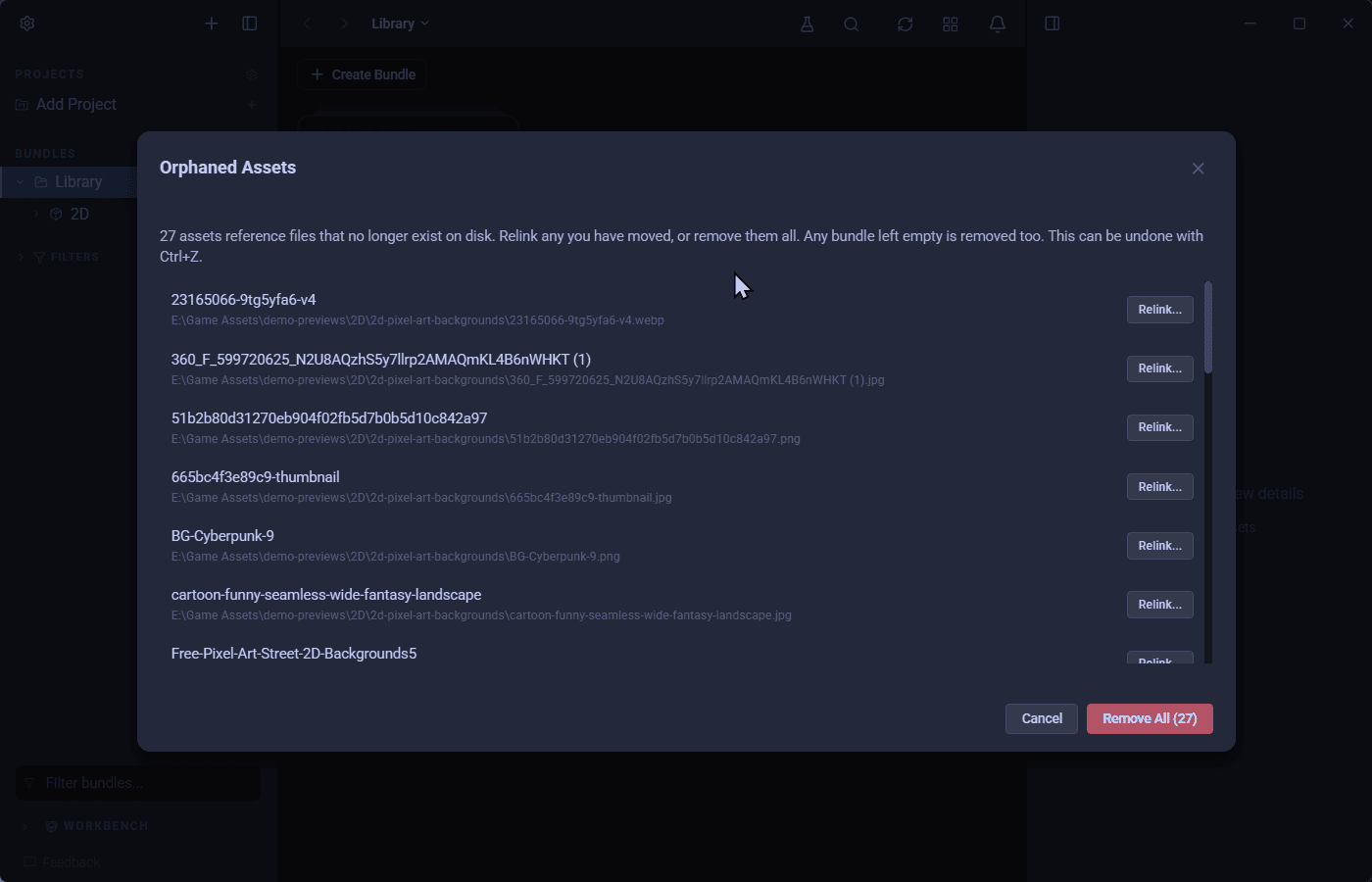
- Clear out orphaned assets in bulk from Settings or with Ctrl+P, relinking the files you can still find and tidying away any bundles left empty.
- Importing while viewing a package will import outside the package
- View the channels in an image - R, G, B or A.
- No more freeze opening a library on a NAS. File-existence checks moved off the UI thread, so a network drive no longer locks up the app on startup.
- Unsupported TIFF variants show a clean placeholder instead of failing outright, and a broken HDR thumbnail is fixed.
- A broken image can't take the app down with it. Decoding is fenced off from decoder crashes, on one shared decode budget.
- Better logging on startup tasks with additional "completed in Xs" line, so a slow launch can be troubleshooted
🛠 Under the hood
Groundwork to make future UI work faster & more consistent.
- Every dialog now sits on a single shared Modal shell: confirm and alert dialogs, pickers, manager modals, the dev component gallery and the cover-picker pair, on one foundation with a global danger-button style.
- A large move towards more reusable components across the UI. Consistency is the goal here.
- Dead legacy zip command aliases are gone; the extract flow stays put for 7z and Godot zips that still lean on it.
Happy hoarding.