Mac Closed Beta Installation
How to install AssetHoard on macOS when the app isn't signed
During the closed beta, AssetHoard is not signed with an Apple Developer certificate. This means macOS will block the app from opening by default. Follow these steps to install and run AssetHoard on your Mac.
Step 1: Open the Installer
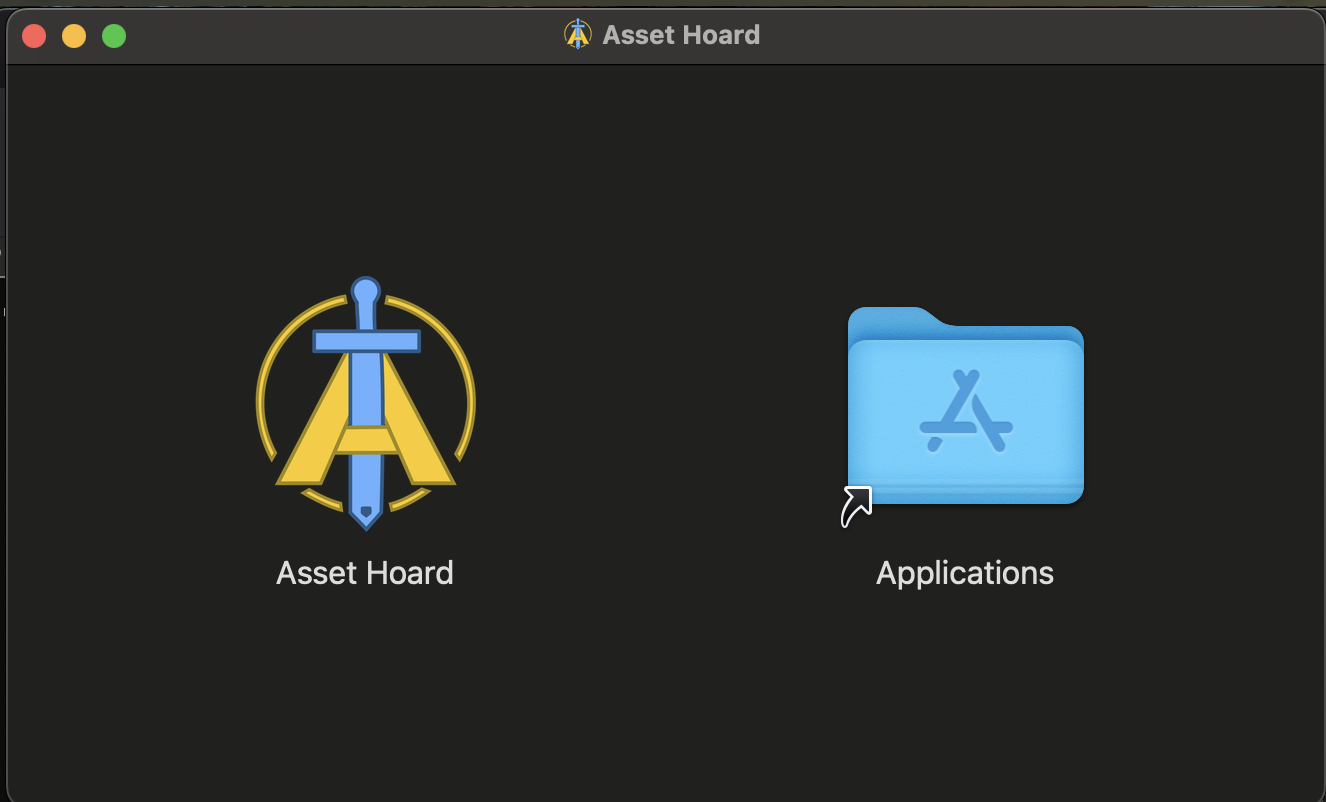
Double-click the downloaded .dmg file and drag AssetHoard to your Applications folder. When you try to open AssetHoard for the first time, macOS will show a warning that the app cannot be opened.
Step 2: Press Done
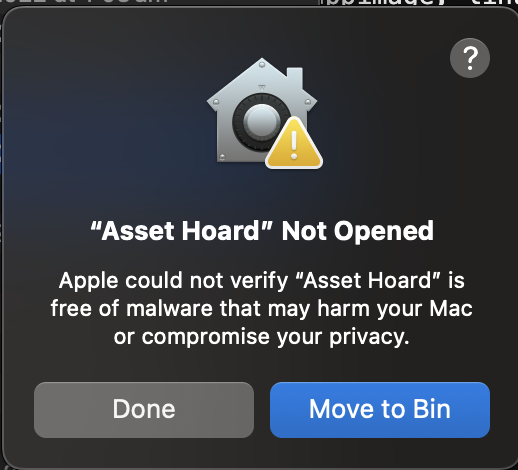
Click Done to dismiss the dialog. Don't worry—we'll authorize the app in the next step.
Step 3: Allow in System Settings
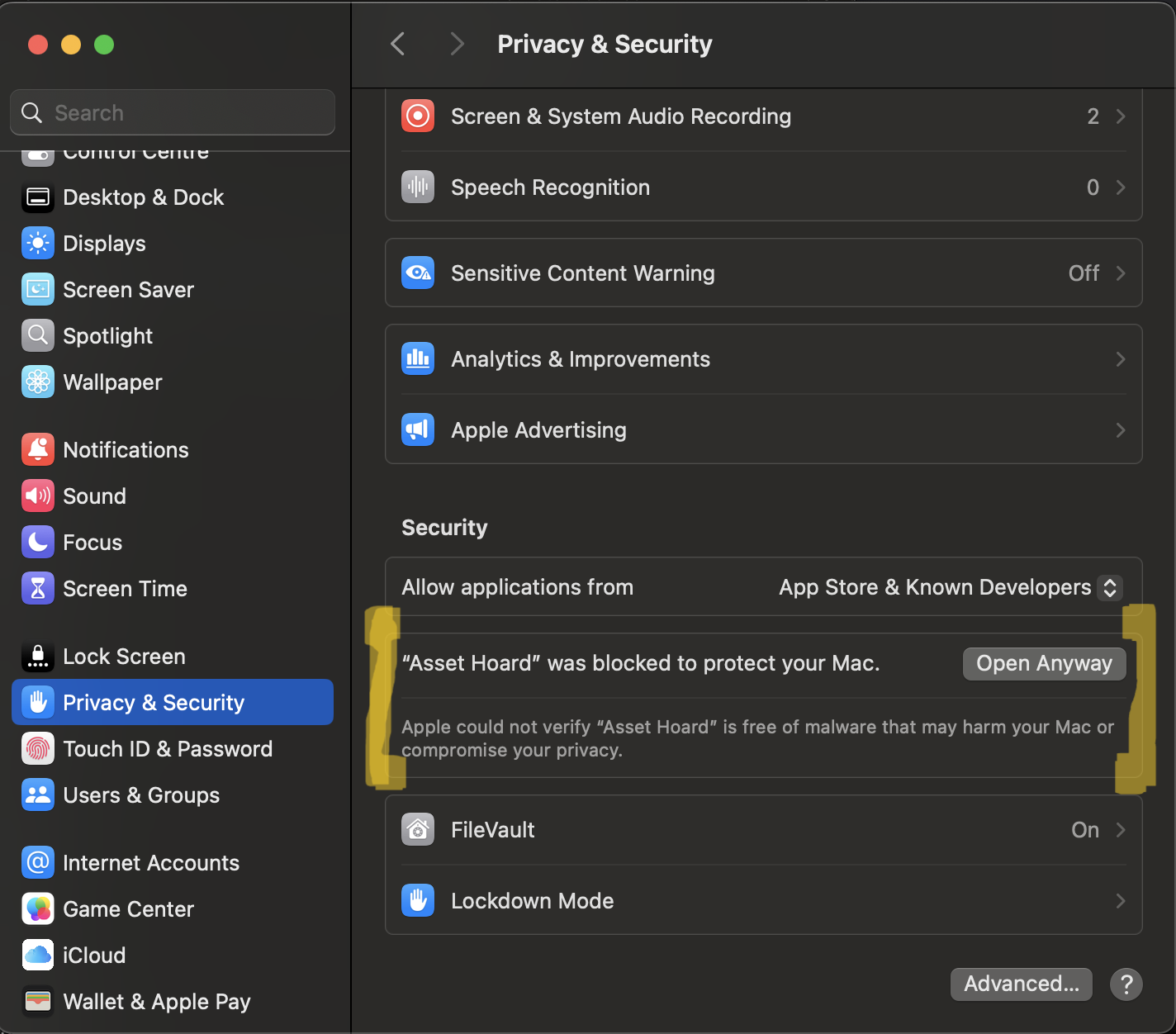
Open System Settings and navigate to Privacy & Security. Scroll down to the Security section. You'll see a message that "AssetHoard" was blocked. Click Open Anyway.
Step 4: Confirm and Open
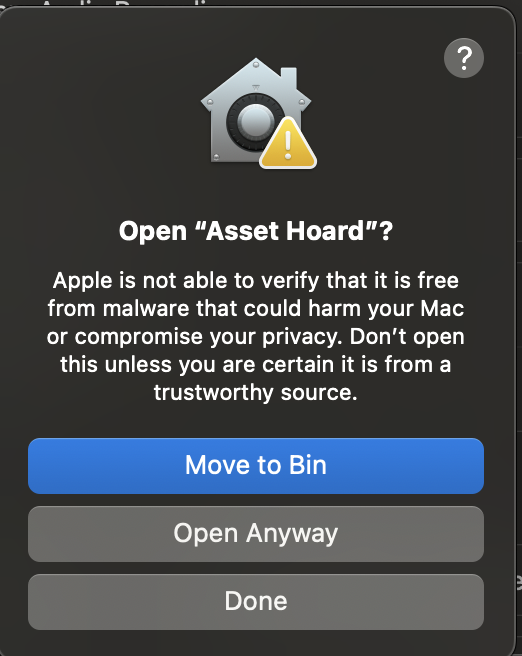
macOS will show one final confirmation dialog. Click Open to launch AssetHoard. You only need to do this once—future launches will work normally.
Having Trouble?
If you're still unable to open AssetHoard, try right-clicking (or Control-clicking) the app icon and selecting Open from the context menu. This sometimes bypasses the security check when double-clicking doesn't work.
If you continue to have issues, please reach out via the beta feedback channel.
We'll sign the app with an Apple Developer certificate once we're out of closed beta, so this workaround won't be needed for the public release.