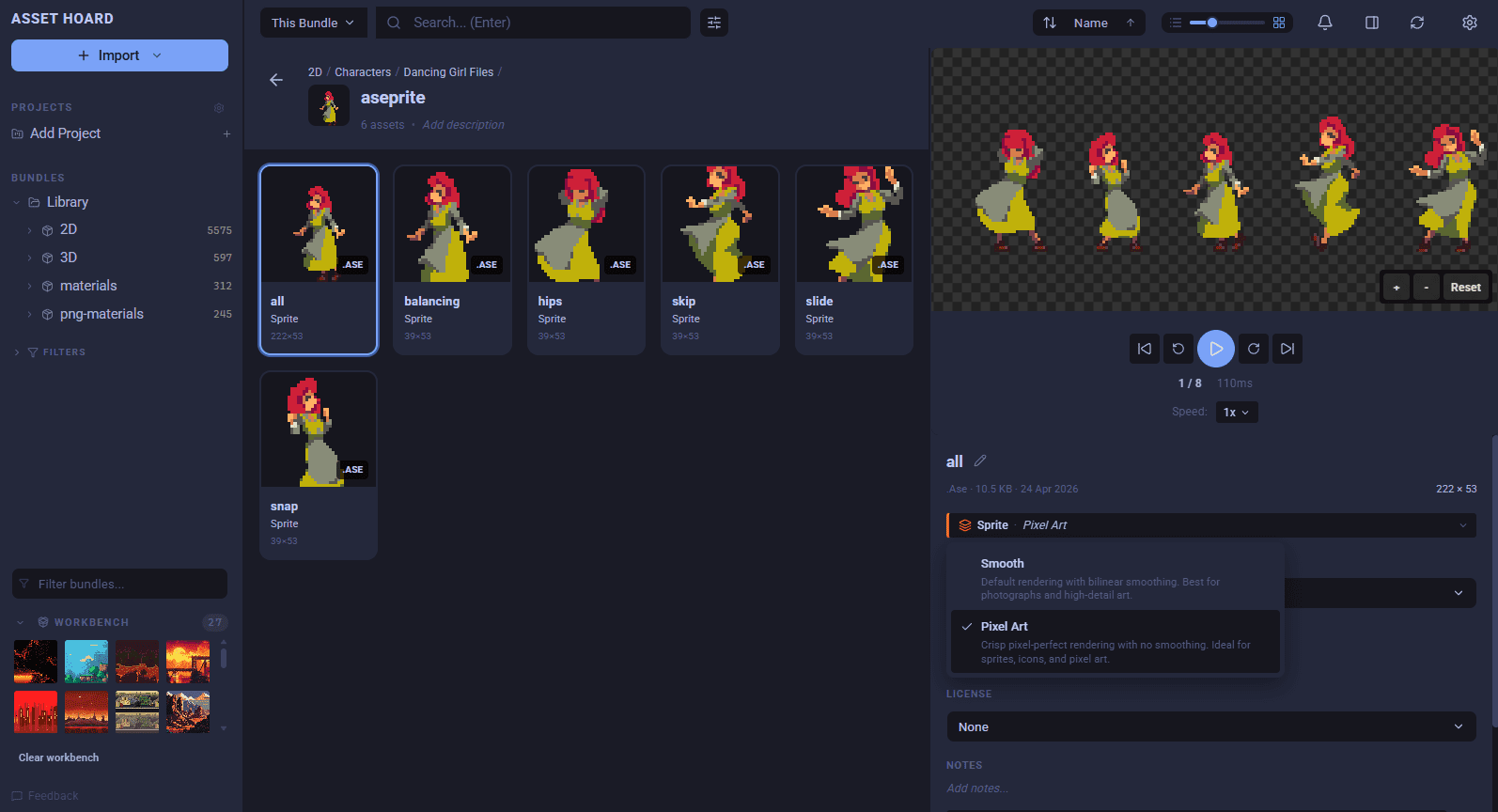
You drag a 32x32 sprite into your asset browser. Something you spent an afternoon getting right, every pixel placed deliberately. The preview comes up. It looks like someone has rubbed butter on the screen.
This is not your fault, and it is not the sprite's fault. It is the rendering pipeline, and almost every general-purpose tool you have ever used gets it wrong by default.
What is actually happening

When a tool displays an image at a size different from its native resolution, it has to invent the missing pixels. There are two main approaches.
The first is interpolation. The renderer looks at the source pixels around each output pixel and blends them together to produce a smooth gradient. This is called bilinear or bicubic filtering, depending on the algorithm. It is excellent for photographs, where soft transitions between colours match how the real world actually looks. A photo upscaled with bilinear filtering looks natural. The eye accepts the smoothing because real surfaces do not have hard pixel boundaries.
The second is nearest-neighbour. Instead of blending, the renderer simply picks the closest source pixel for each output pixel. No averaging, no smoothing, no invention. The result is a clean grid where every source pixel becomes a perfect square block.
For pixel art, you want the second one. Always.
And here is the thing. Pixel art is not low-resolution photography. Every pixel in a good sprite is there on purpose. The artist sat with a four-pixel sword tip and decided whether the highlight should be one pixel or two. They placed antialiasing by hand on the edges that needed it and left the others sharp. The whole point of the medium is that the grid is the canvas, not a limitation to be papered over.
Bilinear filtering takes all of that careful work and averages it into mush. The single-pixel highlight gets smeared into the blade. Hand-placed antialiasing turns into generic blur. Hard silhouettes that read cleanly at native resolution dissolve into soft halos. The render pipeline is doing what it thinks is helpful, except the help is undoing the work.
Nearest-neighbour just gets out of the way. Whatever the artist made survives the scaling, only larger.
Why so many tools get it wrong
Two reasons, both reasonable in isolation.
The first is that photographs vastly outnumber pixel art in any general-purpose image pipeline. If a tool has to pick one default behaviour, picking the one that works for the majority is the safe choice. Bilinear filtering is fine, even good, for almost every image that is not pixel art.
The second reason is harder. Detecting pixel art automatically is not trivial. There is no metadata flag inside a PNG that announces "I am pixel art, please render me crisply." The information has to be inferred from the image itself, and any single signal can be misleading.
Small dimensions are a hint, but plenty of pixel art lives at 512x512 or larger, and plenty of photos exist at thumbnail sizes. A limited colour palette is a hint, but a stylised illustration might also have few colours. Hard edges are a hint, but high-contrast photography has hard edges too. No single check is reliable on its own.
So most tools shrug and pick the safe default. Bilinear for everything. Pixel artists then spend years either ticking the same "disable smoothing" checkbox in every tool they use, or accepting that previews are going to lie about what their work actually looks like.
What good detection looks like
The trick is to combine signals rather than rely on any single one. A reasonable stack might check:
- Image dimensions. Pixel art tends to live below a certain size threshold, particularly for sprites and tiles. This is a soft signal, not a hard rule.
- Unique colour count. Palette-limited art typically has far fewer distinct colours than a comparable photograph. A 64x64 image with twelve unique colours is almost certainly pixel art. The same image with eight thousand colours is almost certainly not.
- Edge transition analysis. Pixel art has hard transitions between adjacent pixels rather than gradients. Counting how often neighbouring pixels differ sharply gives a useful signal.
- File source hints. If an image came out of Aseprite, Pyxel, or any of the established pixel art tools, that is a strong signal in itself. Some of these tools embed identifying metadata that can be detected.
Combine those signals into a confidence score. Above a threshold, render with nearest-neighbour. Below it, fall back to bilinear. Then expose an override so the user can correct the edge cases without ceremony.
This is not glamorous engineering. It is a stack of heuristics, none of which are perfect, that together get the right answer often enough to be useful. The win is that the user stops thinking about it. They drag their sprite in, and it just looks right.
What to look for in a tool
If you work with pixel art, the question to ask of any new asset manager, file browser, or preview tool is straightforward: does it render pixel art correctly without me having to configure anything?
A few specific things to check:
- Drop a 32x32 sprite in and look at the preview. Are the pixels crisp blocks, or is the image soft and blurred?
- Try a 16x16 tile. Tiny art exposes interpolation problems most aggressively.
- Check whether the tool offers a per-asset override. Auto-detection will sometimes get it wrong, and you want to be able to fix individual cases without affecting everything else.
- See whether the setting persists. A tool that requires you to enable crisp rendering every time you open it is barely better than one that does not support it at all.
If the tool fails the first check, the rest does not matter. You will spend the relationship fighting it.
How AssetHoard handles this
AssetHoard ships with automatic pixel art detection as of v0.1.12. When you import images, the tool examines each one against a stack of heuristics and renders pixel art with nearest-neighbour scaling by default. No checkbox to find. No setting to remember.
If the detection misclassifies something, you can override on individual assets, or set the rendering mode at a category level so every sprite or tile inside inherits it automatically. The detection runs at import time, so existing libraries pick up the new behaviour as you add to them.
This is the first feature in a broader renderer system. Future renderers will handle 3D models, materials, and engine-specific package formats with the same principle: detect what the asset actually is, then render it the way the artist intended.
If you have been fighting blurry previews in your asset browser, give AssetHoard a try. It is in open beta, free to use during the beta, and runs entirely on your own machine.
Mark